![Sabanto-Horizontal-Orange-on-Transparent-RGB-1080px-05.16.23.png]](https://support.sabantoag.com/hs-fs/hubfs/Sabanto-Horizontal-Orange-on-Transparent-RGB-1080px-05.16.23.png?height=50&name=Sabanto-Horizontal-Orange-on-Transparent-RGB-1080px-05.16.23.png)
Overview
Use Coverage Planner advanced parameters to shift headlands and passes without redrawing the plan. This helps you fine-tune coverage to match field conditions and reduce repeated traffic in the same areas.
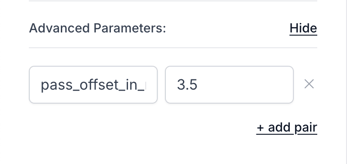
Parameter Reference
headland_offset_in_m: Shifts headlands and passes together by the same amount. This is the parameter to use in almost every case. It also works for circular pass coverage plans.pass_offset_in_m: Shifts passes only. Use this when you want the passes to move without moving the headlands.- Values are entered in meters and can be positive or negative, depending on the direction you want to shift coverage.
Do not set both parameters on the same plan. They are not independent. headland_offset_in_m already moves the passes, so adding pass_offset_in_m moves them a second time and the passes shift twice as far as you intended.
Step-by-Step Instructions
1. Create your coverage plan
- Open Coverage Planner.
- Set up your typical coverage plan as usual.
- If you are working with circular passes, follow How to create circular passes.
2. Open Advance Parameters and add a key/value pair
- Scroll to the bottom of the Coverage Planner panel.
- Expand Advance Parameters.
- Click + add pair.
- Enter one parameter key and value:
- Use
headland_offset_in_mto shift headlands and passes together. Use this one unless you have a specific reason not to. - Use
pass_offset_in_mto shift passes only, leaving the headlands where they are.
- Use
Example values:
-
2.5-2.5
3. Generate and verify the result
- Generate the coverage plan.
- Confirm that the shift moved in the direction you intended.
- If needed, adjust the value and generate the plan again.
4. Save as a template
- Save the plan after the result looks correct.
- Save it as a template for reuse.
- For more information, see Creating coverage plan templates.
Optional: Circular Pass Example
- Open a circular pass coverage plan.
- Add
headland_offset_in_min Advance Parameters. - Generate the plan and verify the circular pass shift.
- Save the plan as a template if you plan to reuse it.
Troubleshooting
The plan did not change or shifted the wrong way
Symptom: Coverage appears unchanged, or it shifts in the opposite direction from what you expected.
Solution:
- Confirm that the key name is entered exactly as
headland_offset_in_morpass_offset_in_m. - Confirm that the value is entered in meters.
- Reverse the sign (
+or-) if the shift direction is incorrect. - Regenerate the plan after each value change.
- Use
headland_offset_in_m, to move passes and headlands together.
The template did not keep the parameter
Symptom: The template opens without the offset parameter.
Solution:
- Confirm that the parameter pair was added before saving the plan.
- Re-save the plan, then recreate the template.
- Use the template in a job and verify that the parameter is present in the metadata.