![Sabanto-Horizontal-Orange-on-Transparent-RGB-1080px-05.16.23.png]](https://support.sabantoag.com/hs-fs/hubfs/Sabanto-Horizontal-Orange-on-Transparent-RGB-1080px-05.16.23.png?height=50&name=Sabanto-Horizontal-Orange-on-Transparent-RGB-1080px-05.16.23.png)
This document details the introduction of Foxglove into the Sabanto ecosystem and the Sabanto specific features. For general information on how to use foxglove as a tool, please visit foxglove's website.
Quick Search
Required Tools
-
To view live diagnostics from the Sabanto Autonomy system, downloading the free version of foxglove desktop to your PC is required.
-
To download this program, please navigate to Foxglove's website then download the program based on the operating system (Windows, Apple, Linux) of your PC.
Using Foxglove to View Data
Viewing Data from the Past with Foxglove
-
Foxglove is able to view data from any time-frame if you have the file with the stored data. Please view their documentation for more details.
-
Sabanto stores our data in files with the extension
.bag. At this time, it is not possible for dealers to download Sabanto bag files to view past data, but this will be coming soon!
Viewing Live Data with Foxglove
-
Navigate to the Devices page and select the device you want to monitor. Click the “Open Foxglove” button.
-
If the vehicle is currently navigating, it will automatically pause and a notification will be issued to the activity feed.
-
Resume the vehicle as needed once the diagnostics portal is ready.
- When Foxglove is running, there may be a noticeable increase to CPU usage resulting in navigation pauses.
-
Important: Two criteria must be met for the "Open Foxglove" button to be displayed
- Device must be on vOS 1.20.0 or greater
- User is considered a Dealer in the Sabanto System
- Please contact Sabanto Support if you believe you are not registered as a Dealer in the Sabanto System.
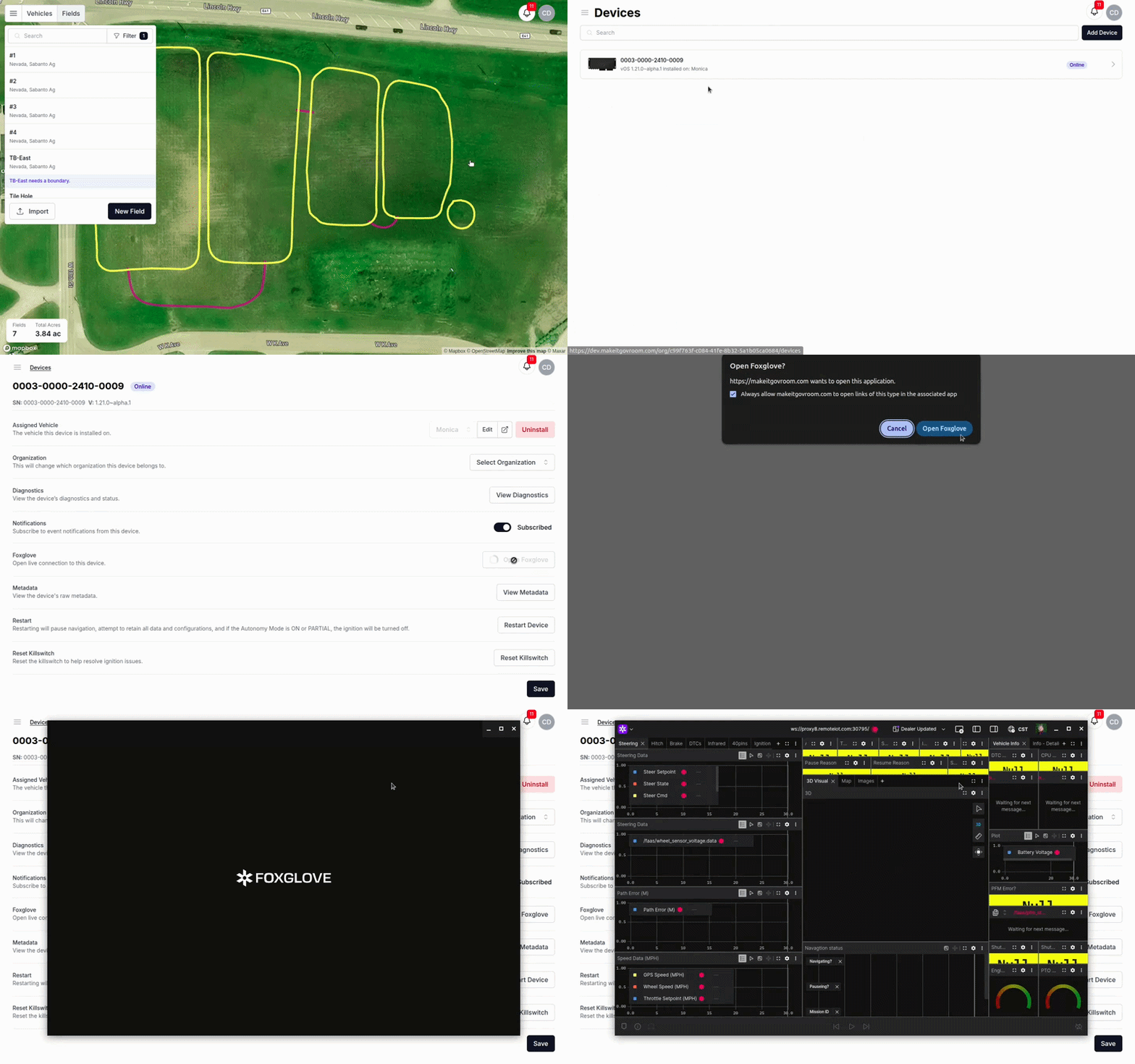
Tip: If your browser presents you with a "always allow" option, turning it on will ensure the diagnostics portal can open with one click instead of two every time.
Foxglove Live Operational Behavior
Timeout Behavior
When Foxglove Live is running on the vPFM, it significantly increases CPU load. To prevent unnecessary system strain, the feature includes automatic shutdown safeguards.
-
When Foxglove Live is opened, it will automatically close after 3 hours.
-
If a user is actively viewing data and then closes their desktop Foxglove application, Foxglove Live on the vPFM will shut down after 5 minutes of inactivity. Please ensure you close the desktop application when you are done troubleshooting a vehicle.
Connection Behavior
Foxglove Live uses a secure proxy tunnel to connect a user’s PC to the vPFM. The connection supports only one active viewer at a time.
-
If a second user attempts to connect while someone else is already viewing the data, the current viewer will be disconnected.
-
This rule applies to both dealers and Sabanto personnel at the same time.
-
-
The most recent user to initiate a connection takes control of the session.
How to Diagnose Customer Reported Issues
Each issue that needs assistance from a dealer may have many factors at play. Understanding how a system works is critical before attempting to diagnose the root cause. Please view the most relevant document below to the issue you are experiencing to learn more about that system. Please note, the below links are accessible by Sabanto dealers only. If you are a Sabanto dealer and cannot access the pages below, please contact Sabanto Support.
- How Does the Sabanto Steering System Work?
- More to come in the future...
Provided Foxglove Layout
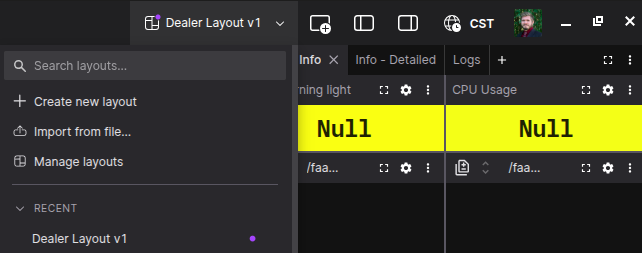
Foxglove allows users to import and export Layouts, making it easy to reuse a workspace for recurring tasks or share configurations with teammates working on similar issues. The free version of Foxglove supports layout imports. For additional details, please refer to Foxglove’s official documentation.
Sabanto encourages dealers to create custom layouts tailored to their specific diagnostic needs. In addition, Sabanto provides a universal Dealer Layout designed for general diagnostic use.
To download and use the Sabanto Dealer Layout, please click here.
Frequently Asked Questions (FAQ)
Q: When I first open Foxglove, why is no data showing and the connection displays a red exclamation mark with a spinning circle?

A: No data is being transferred from the vPFM to your Foxglove desktop.
Troubleshooting:
-
Verify system requirements
-
Confirm the vehicle is running vOS 1.20.0 or later.
-
Ensure the vehicle is online.
-
Make sure the vehicle is not actively navigating.
-
Then attempt to reconnect.
-
-
Test connection to the GPS
-
Click the “Configure GPS” button to connect to the GPS.
-
The GPS connection uses the same network system as Foxglove Live.
-
-
If you can connect to the GPS, skip step 3 and jump to step 4.
-
-
Disable IPv6
-
Disable IPv6 for your PC’s Wi-Fi adapter.
-
Try connecting to the GPS again.
-
Then attempt to reconnect to Foxglove Live.
-
-
Escalation
-
If you can connect to the GPS but not Foxglove Live, there may be an issue with Foxglove Live. Please contact Sabanto Support.
-
If problems persist after completing all steps above, contact Sabanto Support and note that you have already attempted these troubleshooting steps.
-
Q: I was viewing Foxglove Live data and it suddenly stopped updating. The connection now shows a red exclamation mark with a spinning circle. Why did this happen?
A: The tunnel connection may have closed, your session may have timed out, or Foxglove Live may have crashed.
Troubleshooting:
- Verify Session Timeout
- Have you been viewing Foxglove Live data from this vehicle for more than 3 hours?
- Yes: Your session likely timed out. Reconnect by selecting “Launch Foxglove” in vMC.
- No: Proceed to Step 2.
- Have you been viewing Foxglove Live data from this vehicle for more than 3 hours?
-
Check if Another Operator Took Control
-
Click “Launch Foxglove” in vMC.
-
Observe whether you are able to reconnect successfully.
-
-
Escalation
-
If you successfully reconnect after Step 2, confirm that no one else on your team attempted to launch Foxglove Live and unintentionally closed your tunnel session.
- If you experience frequent disconnects due to other users, or if no one else was accessing Foxglove Live at the time of the disconnect, contact Sabanto Support, as this may indicate a system crash.
-